I’ve been hard at work on my WordPress video plugin since I got back from editing Maron season 2 (premieres May 8 on IFC!) in LA a month ago. I finally tackled some things I had been putting off.
First and most important, I internationalized the plugin. When I first started cobbling this plugin together in late 2010 I had a very specific goal in mind, and that was to make it easier for me to post videos with thumbnails. I had a frequent need to show clients work-in-progress videos and I didn’t want to wait for Vimeo to transcode my perfectly good videos, so I used my existing WordPress plugin to share password-protected videos. It always annoyed me that I had to save a thumbnail file and upload it separately if I wanted to have an image show up in the video window so I thought I could save myself some time.
Of course it did not save me any time and since I’ve been working on productions with actual money lately I usually have an assistant who uploads videos to fancy services like DAX. So the plugin became a thing to improve just for the sake of improving it, which led to expanding its scope way beyond what I originally planned.
At this point the plugin has been downloaded over 164,000 times and we can assume that a number of those people are not native English speakers. Over the years I’ve seen those __( 'Some text' ) things in code examples but I never really understood what was going on with them. I had taken a look at the I18n for WordPress Developers page and it kind of baffled me. I had never used the sprintf function before and that seemed complicated. But it’s actually really simple, and when I finally sat down a couple weekends ago and went through the whole program to add those __() things, it wasn’t so much hard as it was incredibly tedious.
But now it’s done, and if you’re interested in translating the plugin, please let me know. I already have Spanish, French, and Danish volunteers.
The other important and actually more tedious issue was adapting the plugin to multisite installations. I had never used WordPress Multisite and I assumed it would just take a little adjustment to fix the problems users had alerted me to. It was not little, and I wish I had never started working on it. If the plugin is network activated, all the individual sites encoding queues are visible on a network encoding queue, and you can set the major FFMPEG settings on a network level. You’re welcome multisiters.
There are a whole bunch of other things, including a re-written gallery pop-up system and the option to use JW Player. Check out the changelog for the full list. And if you have any questions, please create an issue on Github.
I ordered a Chromecast as soon as I heard about it. It was $35 but came with 3 free months of Netflix streaming, which I would be paying for anyway, so it cost me about as much as lunch in Manhattan. It arrived on Friday and I’ve already given up streaming from my clunky Panasonic Blu-Ray player.
Streaming from apps that support Chromecast is fast, high-quality, and easy. Netflix, YouTube, and Google Play media show up on my TV with two taps. I ordered Europa Report from Google Play and had it on the TV in three taps on my Nexus 4. The movie was OK, but the purchasing and watching experience was as simple as I can currently imagine it. Casting a whole tab from Chrome is a different story. It’s really no good for video. It might be fine if you want something a little more static on screen but there was visible video stuttering when streaming from my MacBook Pro.
Here’s the big missing feature: on iOS if you have an Apple TV you can send any HTML5 video to it by pressing the AirPlay button in the video controls. Is there a good reason why every Chrome browser can’t send any HTML5 video to Chromecast today? I know that Chromecast works differently, and requires a receiver app, but it seems to me that Chrome could provide a generic HTML5 video receiver app without requiring every content provider to register as a developer and make their own, since every receiver app would be essentially the same. Maybe this is coming in Chrome 30 and I shouldn’t expect things to move so quickly, but I haven’t been able to find any discussion of it so far. I would love to incorporate it into my WordPress video player plugin as soon as possible.
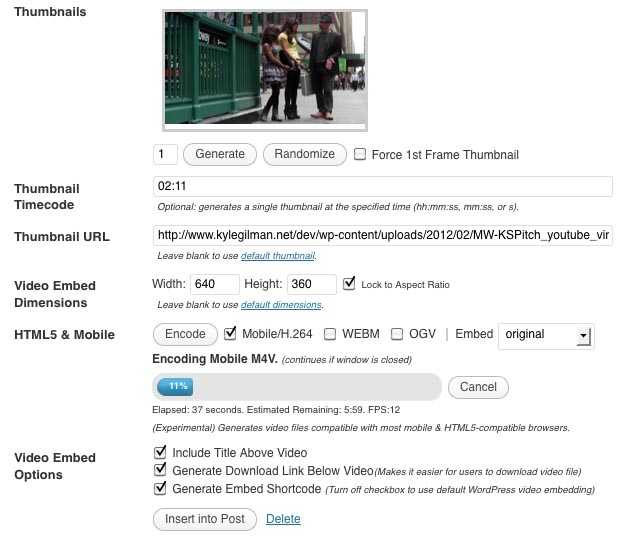
Closing a number of security holes and adding some nifty UI enhancements like an encoding progress bar and animation during thumbnail generation, this is an important update and is strongly recommended for anyone using the Video Embed & Thumbnail Generator plugin.
In January I made a plugin for WordPress that generates thumbnails for videos posted online, and the proper HTML & JavaScript codes to embed those videos in a webpage. It has come in handy many times when I want to show a work-in-progress to a client, post dailies, or just embed a video on my blog. Writing it really helped me get a handle on the whole HTML5 video thing, which in summary is a big ugly mess.
The first version was really crude because I couldn’t figure out how to hook in to the WordPress Media Library, but it worked well enough for my purposes. I always wanted to go back in and make it more user-friendly, so for the past few weeks I’ve been revising the plugin to tap in to the built-in uploading and media management systems. Big thanks to Andy Blackwell for posting his great tutorial on the very important attachment_fields_to_edit hook. I learned a lot more about the WordPress plugin system, and finally put the plugin in their directory, which forced me to learn a few things about SVN, which is a clever if initially baffling system.
Anyway, I highly recommend the new version of this plugin if you’re doing any video embedding on your WordPress site. You don’t need FFMPEG if you just want a good system for posting videos you have hosted on your site, but if you do have FFMPEG on your server, you’ll get thumbnail generating and automatic HTML5/iPhone-compatible file encoding. It’s pretty neat.
UPDATE June 2013: This method will work but it’s likely to cause playback problems with Android devices. Android officially only supports up to Baseline profile and it’s hard to control the profile of videos encoded with Compressor. If you’re concerned about Android compatibility, I highly recommend Handbrake.
Unless there’s a specific need for something else, I almost exclusively encode web video using H.264 in an MP4 container. It looks great, and is the most widely compatible format I know. I started doing it mostly because Flash Video players support it without having to re-encode as FLV. Here are the settings I use in Compressor:
Do this on a full-quality “Current Settings” QuickTime movie already exported from Final Cut Pro. Don’t export directly to Compressor from FCP. This is a lot cleaner.
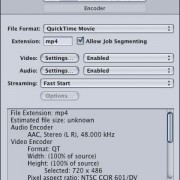
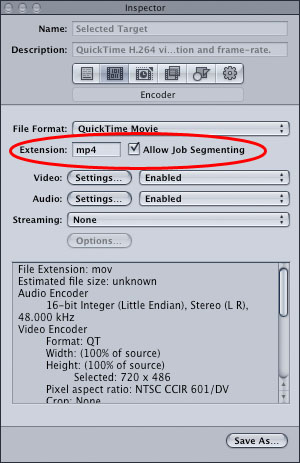
Start with the “QuickTime H.264” preset in the Apple/Formats/QuickTime folder. It might seem wrong, but we’re not going to use the MPEG-4 “File Format” setting. We’ll be working in QuickTime Movie format since we get the most control over compression settings that way.
Drag the preset onto your video to apply it.
Change the Extension setting to mp4. Yes, it’s really that easy. You have to change it here though. You can’t just change your .mov filename to .mp4 after it’s encoded.
UPDATE August 2012: I used to get invalid public atom errors when I renamed .mov H.264/AAC files to .mp4, but I just had a whole bunch of .mov files otherwise encoded with these settings that I needed to play in a Flash player. Sound played, but no picture. I didn’t have time to re-encode, so I tried just renaming the file and changing the extension to mp4. Picture now plays fine in the Flash player in Firefox, and QuickTime Player can open the files locally with no problem. The .mov extension wasn’t even an issue for the HTML5 player in Chrome.
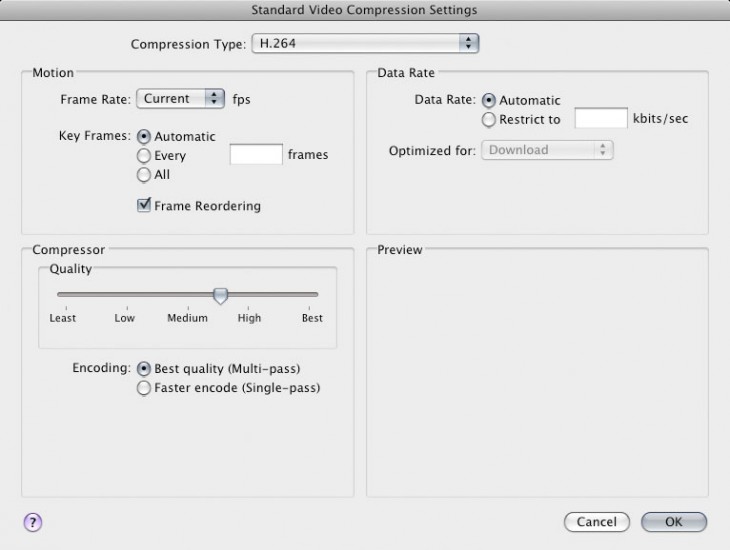
Next, click on the Video “Settings…” button and use these settings:
You might need to change these based on your needs. I find the sweet spot for quality and file size lives between that Medium and High setting. Some streaming may require you to restrict the data rate. Multi-pass encoding hardly adds any time to the process (the 2nd pass is very quick) so I always leave it on.
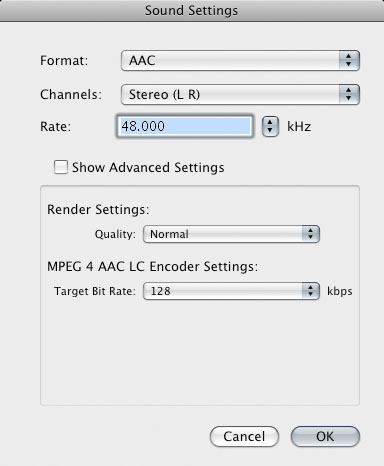
Click OK, and move on to the Audio “Settings…” button. Switch the Format over to AAC and you should be fine.
If you have to be stingy with your bits, you can fiddle by going down to Mono or reducing the Target Bit Rate. I’m generally of the opinion that we shouldn’t be too stingy with our bits, so I don’t do that.
Hit OK and move on to Streaming. Change it to “Fast Start”
This lets your video start playing before the file finishes downloading. It’s not streaming, but progressive download; like YouTube. Don’t choose Fast Start – Compressed Header because that will prevent Flash players from taking advantage of the progressive download and won’t really help your file size much.
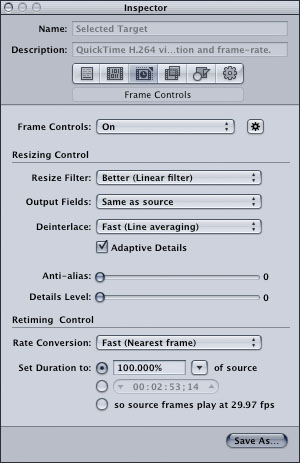
Frame Controls. Use them if you have the time. It really makes a difference in quality but definitely increases encode time. I usually just switch it on and leave it at the default settings unless I need to deinterlace or change the framerate. In this case I’m only really using the Better Resize Filter.
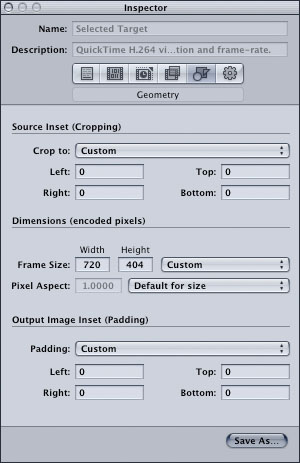
Finally, do whatever you need to in the Geometry tab to output the resolution you need. Keep the height an even number. Odd numbers freak out the H.264 codec. In this case 720×405 is closer to 16:9, but change it to 404 and everyone will be happier.
Save your custom preset and then submit. Make sure you set up a QuickCluster if you have more than two cores and you’ll get a real speed boost.
In a future update (v4.7) this plugin will be changing its name to “Videopack” and removing old video players StrobeMediaPlayback and JW Player 6 that haven’t been supported for several years. Freemius will also be integrated on an opt-in basis to allow premium add-ons. More info in the support forum.
A plugin for the WordPress visual editor to make embedding videos, generating thumbnails, and encoding HTML5-compliant files a little bit easier.
Upload the entire video-embed-thumbnail-generator folder to the /wp-content/plugins/ directory.
Activate the plugin through the ‘Plugins’ menu in WordPress.
Make sure you have all your MIME types configured correctly. Many servers don’t have .mp4, .m4v, .ogv configured, and even more don’t have .webm. There are a number of ways to do this. In your public_html directory you can edit your .htaccess file and add the following lines:
will help with IE playback of .mov files but could interfere with other QuickTime players.
Or use your web host’s configuration panel (cpanel, etc) to add custom MIME types.
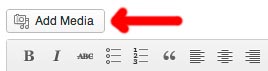
Just click the Add Media button to get started:
This plugin adds several fields to any video uploaded to the WordPress Media Library. Just choose a few options, make thumbnails, click “Insert into Post” and you’ll get a shortcode in the post editor that will embed a flexible, responsive HTML5 video player with Flash fallback for unsupported browsers.
You have the option to use a few different video players:
Video.js (files are included with the plugin)
The WordPress default player using MediaElement.js, which was introduced in WordPress version 3.6
JW Player 6 (if their old, discontinued plugin is already installed. This plugin does not work with JW Player 7 yet.)
Adobe’s Strobe Media Playback Flash player (deprecated)
The Strobe Media Playback option hasn’t been updated since 2011 and is not recommended, but I’m keeping it around for longtime users of this plugin who don’t want to change. Most features of the plugin will work when using Strobe Media Playback, but new features will not be tested with it. Selecting Strobe Media Playback will default to a Flash video player if you’re using a Flash-compatible file (flv, f4v, mp4, mov, or m4v). Otherwise it will use the Video.js player as a fallback.
No matter which player you use, the video will responsively resize to fit the container it’s in. There is no need to use FitVids.js and in fact FitVids.js will break playback for some players. If you provide multiple H.264 resolutions, the plugin can automatically select the one closest to the size of the player or a resolution of your choice, and provide a button for users to select the resolution manually. If you have Google Analytics set up on your site, the plugin will automatically send Google Analytics Events when users start, reach 25%, 50%, 75%, and complete watching your videos.
You can also use the plugin to create a popup video gallery. The shortcode uses options similar to the WordPress image gallery shortcode. In its simplest form use the code [KGVID gallery="true"] to create a gallery of all videos attached to the post. Thumbnail size and video popup size can be set on the plugin settings page or in the shortcode. To make a custom gallery that includes videos that aren't attached to the current post you'll need to determine the video's ID, which is shown under the Video Stats section when viewing the attachment. Switch the "insert" option from "Single Video" to "Video Gallery" and you'll get a number of additional options (all of which are optional). Add a comma-separated list of video IDs in the "Include" field to create a gallery manually. Note: the "Create Gallery" section of the Add Media window is a built-in WordPress function and is only for making image galleries.
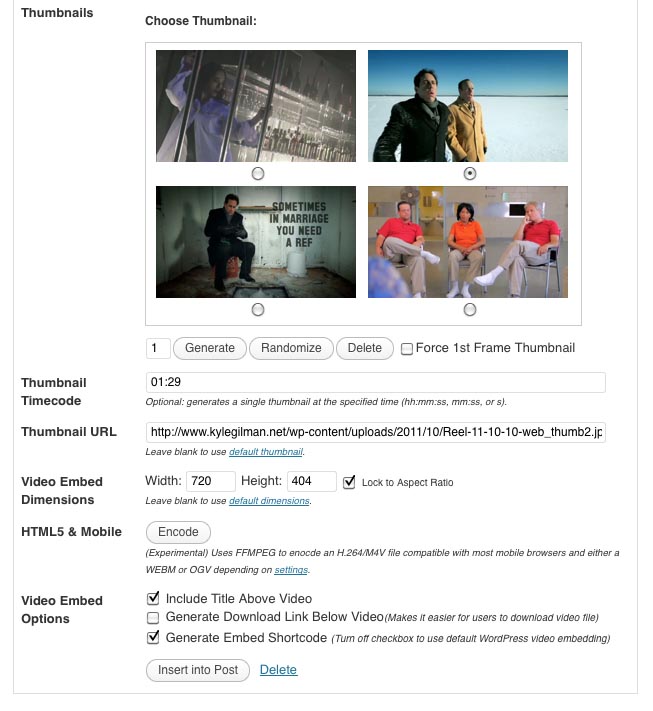
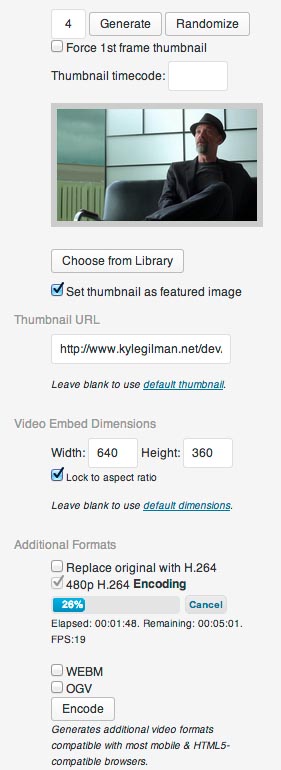
If your video can be played natively in your browser, or if you have FFMPEG or LIBAV installed on your server, you can generate thumbnails from your video. Using either the "Generate" or "Randomize" buttons will create an array to choose from. The "Generate" button will always generate thumbnails from the same frames of your video, evenly spaced. If you don't like them, you can randomize the results with the "Randomize" button. If you want to see the first frame of the video, check the "Force 1st Frame Thumbnail" button. After creating an array of thumbnails you can save them all using the "Save all thumbnails" button.
If you know which frame you want to use for your thumbnail, click "Choose from video..." to select it from the video. This will only work for videos that can be played natively in your browser. If you want really fine control you can enter timecode in the "Thumbnail timecode" field. Use mm:ss format. Use decimals to approximate frames. For example, 23.5 will generate a thumbnail halfway between the 23rd and 24th seconds in the video. 02:23.25 would be one quarter of the way between the 143rd and 144th seconds. You can generate as many or as few as you need (up to 99 at a time).
After you select a thumbnail it will be registered in the WordPress Media Library and added to the video's attachments. Unused thumbnails will be deleted.
In the plugin settings you can set the default maximum video width and height based on the dimensions of your particular template and those values will be filled in when you open the window. If you generate thumbnails, the video display dimensions will be adjusted automatically to match the size and aspect ratio of the video file. You can make further adjustments if you want. There are options to always fill the width of the template or to always set videos to the maximum width setting regardless of their resolution.
If enabled in the plugin settings, Facebook, Twitter, and Schema.org video search engine metadata will be generated for your videos. If your site supports https, your videos can play directly in the Facebook timeline or on Twitter. Twitter requires whitelisting for each domain that provides player cards so you will be required to request whitelisting using the Twitter Card Validator tool. Once you've installed the plugin and enabled the Twitter Cards setting, go to the Twitter Card Validator, enter a secure URL from your site that has a video embedded using this plugin, click "Preview card" and you'll probably see a warning that your site isn't whitelisted. Request whitelisting and Twitter should approve you fairly quickly. Enabling the Facebook or Twitter metadata options will override Jetpack's corresponding metadata whenever a video is embedded on the page. However, your theme or SEO plugins might generate their own metadata that could conflict with this plugin's.
You can add subtitle and caption tracks by choosing properly formatted WebVTT files from the media library or entering a URL directly. Enter the two-letter language code and the label text that will be shown to users. Enabling the "default" option will turn the text track on when the page loads. The WordPress default player does not differentiate between captions and subtitles, but Video.js will show a different icon depending on the selection.
I highly recommend using Handbrake to make a file with H.264 video and AAC audio in an MP4 container before uploading. If you're encoding with Handbrake make sure that "Web Optimized" is checked. Using Apple's Compressor, the "Streaming" setting should be "Fast Start" (not Fast Start - Compressed Header).
The plugin can use FFMPEG or LIBAV to encode videos and make thumbnails if you have one of them installed on your server. You can choose to generate thumbnails and additional video formats automatically whenever a new video is uploaded to the media library, and there are buttons to generate thumbnails and additional video formats for every video already in the media library. If you want most videos to be re-encoded and replaced with a particular format but sometimes want to keep the original video, you can add the suffix '-noreplace' (awesomevid-noreplace.mp4) to your filename and the uploaded video will not be replaced. Other automatic formats will still encode.
By default the plugin looks for FFMPEG in /usr/local/bin but if the application is installed in a different place on your server, you can point it to the correct place in the plugin settings. Users running WordPress on Windows servers should try using Linux-style paths (with forward slashes instead of backslashes and a forward slash / instead of C:). Multisite Super Admins must set the FFMPEG path in the Network settings page which will enable FFMPEG throughout the network.
If you have the proper libraries installed on your server, you can choose to replace your uploaded video with your preferred format, and generate as many as seven additional formats depending on your original source. 1080p, 720p, and 360p H.264, same resolution WEBM (VP9 or VP8) and OGV, and a custom format. Different browsers have different playback capabilities. Most desktop browsers can play H.264, and all modern mobile devices can play at least 360p H.264. If you create multiple H.264 resolutions, the highest resolution supported by the device will be served up automatically. The plugin will not upconvert your video, so if you upload a 720p video, it will not waste your time creating a 1080p version. There was a time when it seemed like a good idea to provide OGV or WEBM for some desktop browsers, but Firefox supports native H.264 playback in most operating systems now. I no longer recommend encoding OGV or WEBM unless you're making an open source principled stand against H.264. However, your needs may vary. VP9 WEBM is a next-generation codec not supported by many browsers, but it can make videos much smaller while still retaining quality.
The files will encode in the background and will take some time to complete, depending on your server setup and the length and size of your video. VP9 encoding will take much longer than any other format. The plugin adds a Video Encode Queue menu to the Tools menu. You will see encoding progress, the option to cancel an encoding job, and you should get an error message if something goes wrong. Users on Windows servers may get inconsistent results with the encoding queue.
Encoded H.264 files can be fixed for streaming using "movflags faststart" introduced in recent versions of FFMPEG/LIBAV, or qt-faststart or MP4Box if you have one of them installed on your server and select it in the plugin settings. Without one of these options enabled, FFMPEG/LIBAV will place moov atoms at the end of H.264 encoded files, which in some cases forces the entire file to download before playback can start.
If you want to make OGV, WEBM, or H.264 files available and can't use the FFMPEG encode button, you can upload your own files to the same directory as the original and the plugin will automatically find them. For example, if your main file is awesomevid.mp4, the plugin will look for awesomevid-1080.mp4, awesomevid-720.mp4, awesomevid-360.mp4, awesomevid.webm, awesomevid-vp9.webm, awesomevid.ogv, and awesomevid-custom.mp4 as well. If your videos don't conform to that naming structure, you can manually assign them from the media library. No matter what format your original video is, you can use it in the shortcode and the plugin will attempt to find all compatible formats related to it. For example, you might have an AVI called awesomevid.avi which is not compatible with any browser, but if you have other formats encoded already, [KGVID]http://yoursite.com/awesomevid.avi[/KGVID] will ignore the incompatible AVI file, but find those other formats and embed them.
If you want to make it easier for users to save your videos to their computers, you can choose to include a link by checking the "Generate Download Link Below Video" button.
Sometimes for various reasons you might need to embed video files that are not saved in the WordPress Media Library. Maybe your file is too large to upload through the media upload form (if it is, I suggest the excellent "Add From Server" plugin), or maybe it's hosted on another server. Either way, you can use the tab "Embed Video From URL" in the Add Media window. Just enter the Video URL manually, and all other steps are the same as the Media Library options. The plugin will look for alternate encoded files in the same directory as the original, but this takes a long time when the video is on another server so it will only check for them once.
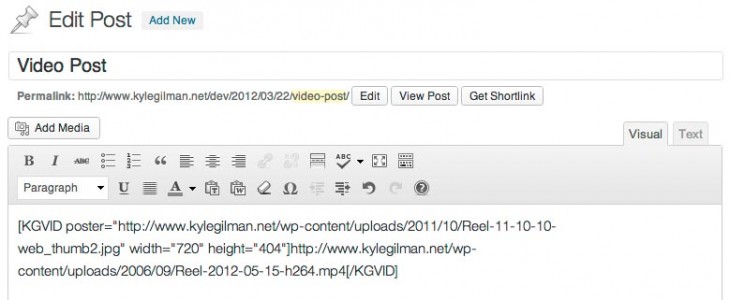
Once you've filled in all your options, click "Insert into Post" and you'll get a shortcode in the visual editor like this
To embed videos on other sites you can use an iframe like this
If you enable oEmbed provider data in the plugin settings, the URL of a post with a video shortcode in it or the URL of the video's attachment page will be converted to an embedded video on sites that allow oEmbed discovery. For example http://www.kylegilman.net/2011/01/18/video-embed-thumbnail-generator-wordpress-plugin/ is the URL for this plugin on my website, but it has the oEmbed header for the video embedded in it so the URL will be converted to an embedded video on sites with oEmbed discovery enabled. WordPress limits oEmbed providers to an internal whitelist for security reasons. This plugin has an option to enable oEmbed discovery for users with the unfiltered_html capability.
The JW Player 6 plugin has been removed from the WordPress plugin repository and JW Player 7 uses a very different system for embedding videos. JW Player 7 support is not available in this plugin yet. The Strobe Media Playback option hasn't been updated since 2011 and is not recommended, but I'm keeping it around for longtime users of this plugin who don't want to change. Most features of the plugin will work when using Strobe Media Playback, but new features will not be tested with it. Selecting Strobe Media Playback will default to a Flash video player if you're using a Flash-compatible file (flv, f4v, mp4, mov, or m4v). Otherwise it will use the Video.js player as a fallback.
If you want to further modify the way the video player works, you can add the following options inside the KGVID tag. These will override anything you've set in the plugin settings
id="xxx" video attachment ID (instead of using a URL).
videos="x" number of attached videos to display if no URL or id is given.
orderby="menu_order/title/post_date/rand/ID" criteria for sorting attached videos if no URL or ID is given.
order="ASC/DESC" sort order.
poster="http://www.example.com/image.jpg" sets the thumbnail.
endofvideooverlay="http://www.example.com/end_image.jpg" sets the image shown when the video ends.
width="xxx"
height="xxx"
align="left/right/center"
inline="true/false" allow other content on the same line as the video
volume="0.x" pre-sets the volume for unusually loud videos. Value between 0 and 1.
mute="true/false" sets the mute button on or off.
controlbar="docked/floating/none" sets the controlbar position. Video.js only responds to the "none" option.
loop="true/false"
autoplay="true/false"
pauseothervideos="true/false" video will pause other videos on the page when it starts playing.
start="mm:ss" video will start playing at this timecode.
watermark="http://www.example.com/image.png" or "false" to disable.
watermark_url="http://www.example.com/" or "false" to disable. If this is set, it will override the watermark_link_to setting.
title="Video Title" or "false"to disable.
embedcode="html code" changes text displayed in the embed code overlay in order to provide a custom method for embedding a video or "false" to disable.
view_count="true/false" turns the view count on or off.
caption="Caption"
description="Description" Used for metadata only.
downloadlink="true/false" generates a link below the video to make it easier for users to save the video file to their computers.
right_click="true/false" allow or disable right-clicking on the video player.
resize="true/false" allow or disable responsive resizing.
auto_res="automatic/highest/lowest" let the plugin select the best resolution for the size of the player.
pixel_ratio="true/false" account for high-density (retina) displays when choosing automatic video resolution.
schema="true/false" allow or disable Schema.org search engine metadata.
These options will add a subtitle/caption track
track_src="http://www.example.com/subtitles.vtt_.txt" URL of the WebVTT file.
track_kind=subtitles/captions/chapters
track_srclang=xx the track's two-character language code (en, fr, es, etc)
track_label="Track Label" text that will be shown to the user when selecting the track.
track_default="true/false" track is enabled by default.
These options will only affect Video.js playback
skin="example-css-class" Completely change the look of the video player. Instructions here.
nativecontrolsfortouch="true/false disable Video.js styling and show the built-in video controls on mobile devices. This will disable the resolution selection button.
These options will only affect Flash playback in Strobe Media Playback video elements. They will have no effect on HTML5 or Video.js playback.
autohide="true/false" specify whether to autohide the control bar after a few seconds.
playbutton="true/false" turns the big play button overlay in the middle of the video on or off.
streamtype="live/recorded/DVR" I honestly don't know what this is for.
scalemode="letterbox/none/stretch/zoom" If the video display size isn't the same as the video file, this determines how the video will be scaled.
backgroundcolor="#rrggbb" set the background color to whatever hex code you want.
configuration="http://www.example.com/config.xml" Lets you specify all these flashvars in an XML file.
skin="http://www.example.com/skin.xml" Completely change the look of the video player. Instructions here.
These options are available for video galleries (options work the same as standard WordPress image galleries)
gallery_thumb="xxx" width in pixels to display gallery thumbnails.
gallery_exclude="15" comma separated video attachment IDs. Excludes the videos from the gallery.
gallery_include="65" comma separated video attachment IDs. Includes only these videos in the gallery. Please note that include and exclude cannot be used together.
gallery_orderby="menu_order/title/post_date/rand/ID" criteria for sorting the gallery.
gallery_order="ASC/DESC" sort order.
gallery_id="241" post ID to display a gallery made up of videos associated with a different post.
gallery_end="close/next" either close the pop-up or start playing the next video when the current video finishes playing.
gallery_per_page="xx" or"false" to disable pagination. Number of video thumbnails to show on each gallery page.
gallery_title="true/false" display the title overlay on gallery thumbnails.
These options can be added to the URL to further customize playback
Using the `kgvid_video_embed` query string any of the following options will modify playback: auto_res, autoplay, default_res, fullwidth, height, mute, nativecontrolsfortouch, pixel_ratio, resize, set_volume, start, width
Example: https://www.kylegilman.net/portfolio-item/bronx-warrants-pilot/?kgvid_video_embed[start]=29&kgvid_video_embed[autoplay]=true autoplays the embedded video and starts 29 seconds in.
I'm not really a software developer. I'm just a film editor with some time on his hands who wanted to post video for clients and wasn't happy with the current state of any available software. But I want to really make this thing work, so please help me out by posting your feedback on Github or my WordPress support forum. I do not offer free email support.
FAQ
Why doesn't my video play?
Most of the time your video doesn't play because it's not encoded in the right format. Videos have containers like mp4, mov, ogv, mkv, flv, etc and within those containers there are video and audio codecs like H.264, MPEG-4, VP8, etc. The best option for this plugin is an mp4 container with H.264 video and AAC audio. It's confusing, but there is a codec usually identified simply as "MPEG-4" of "MPEG-4 Visual" which is not the same thing as H.264 even if it's in an mp4 container. mp4s with MPEG-4 video will not play in most browsers, and if you don't use AAC audio you won't get any audio. I highly recommend using Handbrake to make a file with H.264 video and AAC audio in an MP4 container.
Use MediaInfo to get really detailed information about your media files.
If your theme loads FitVids.js, it will break playback in Firefox. If you can figure out how to prevent your theme from loading FitVids.js you will not miss it.
Why does my video have to download completely before it starts playing?
mp4/m4v/mov files have something called a moov atom that gives the video player information about the content of the video (dimensions, duration, codecs, etc). Depending on the program you used to make your video, the moov atom can be at the beginning or the end of the file. Most video players will wait until they find the moov atom before starting playback. Otherwise it doesn't know how to display the information it's downloading. If it's at the beginning of the file, playback starts very soon after the user hits the play button. If it's at the end of the file, the whole video has to download before playback starts.
There are a number of ways to fix this problem. Most video encoding programs have an option like "Web optimized," "Streaming," "Fast start," or "Progressive download." Try to find and enable that option in your program. If you can't do that, there are programs designed to move the moov atom to the head of the file. Try QTIndexSwapperfor Adobe Air (cross platform), MP4 Faststart for Windows, or QTFastStart for Mac.
FFMPEG puts the moov atom at the end of the file, so this can be a problem. The plugin will fix this problem on newly encoded H.264 videos if you have a recent version of FFMPEG and enable the "movflags faststart" option in the plugin settings or if you have qt-faststart or MP4Box installed on your server.
Why doesn't this work with YouTube?
WordPress already has a built-in system for embedding videos from YouTube, Vimeo, Dailymotion, etc. Just put the URL into your post and WordPress will automatically convert it to an embedded video using oEmbed. You don't need this plugin to do that. If you're trying to generate new thumbnails from YouTube videos, I'm not going to risk Google's wrath by providing that functionality. I'm not even sure I could figure out how to do it anyway.
If you just want to change the skin or thumbnail of a YouTube video, use JW Player.
I'm getting an error message "FFMPEG not found at /usr/local/bin/. You can embed existing videos, but video thumbnail generation and Mobile/HTML5 video encoding is not possible without FFMPEG."
First off, don't panic.
This plugin can use FFMPEG or LIBAV to make thumbnails and create alternate video formats. Unfortunately most servers don't have FFMPEG installed and most shared hosting plans don't allow you to install FFMPEG because of the system resources it requires. You're getting this error message because you don't have FFMPEG installed in the most common directory. If you know you have FFMPEG installed on your server, you'll need to find the actual path to the program and enter it in the plugin settings field Path to applications on server
Most of the features of the plugin will work without FFMPEG. You can generate embed shortcodes for your videos and make thumbnails on any host because that part of the plugin is JavaScript running in your browser. But without FFMPEG you won't be able to automatically generate thumbnails or encode alternate formats on the server. If you don't have your own VPS or dedicated server, Dreamhost is one of the few shared hosts I know of that has FFMPEG installed and available for users.
How can I encode videos in directories protected by .htaccess passwords?
Enter the username & password in the plugin settings "FFMPEG Settings" tab, or use the "Embed from URL" tab and enter the URL in this format http://username:[email protected]/uploads/2012/01/awesomevid.mp4 in the Video URL field.
Added setting to change default playsinline behavior on iPhones.
Changed default sort order of video galleries created using the gallery_include parameter to maintain the order of IDs as entered in the parameter.
Fixed bug that caused an error when saving Menus.
Added Greek translation.
4.6.27 - January 6, 2021
Fixed bug in testing FFMPEG execution.
4.6.26 - December 28, 2020
Added option to disable shortcode URL rewriting if WordPress doesn't know your videos are hosted on a CDN.
Added playsinline attribute to Video.js videos to allow iPhones to play videos inline on web pages.
Added filter to manually rewrite shortcode URLs.
Changed code that caused fatal error 'Can't use function return value in write context' on PHP versions before 5.5
Made gallery thumbnail images responsive.
Stopped using deprecated $user_ID global.
Fixed bug that crashed WordPress Default player if text tracks were available but no default track was set.
Fixed bugs that caused FFMPEG errors if application path contained a space.
4.6.25 - May 28, 2019
Fixed bug that broke pop-up galleries when video title had a space in the name.
Fixed bug that re-shuffled random gallery order every time a new gallery page was loaded.
Fixed bug that disabled auto resolution switching when using the WordPress Default video player.
Removed the built-in WordPress Default video player size limit for better responsive sizing.
Reduced CPU load when responsive video resizing is enabled.
Now selectively enqueuing Video.js resolution selector JavaScript file.
Re-ordered resolution list so when original resolution is unknown, “Full” is at the top, enabled translation of the “Full” menu item and now automatically renaming it when video metadata is loaded.
Better activation procedure that doesn’t generate errors and disables FFMPEG functions if FFMPEG is not found.
No longer turning on all video encode formats by default.
Fixed bug that couldn’t automatically discover alternate formats of videos on other servers via https.
Fixed bug that broke tab switching on the settings page when other plugins modified the admin page.
Code changes to allow for future child formats that aren’t videos.
4.6.24 - April 1, 2019
Improved method for assigning Google Analytics Event labels.
4.6.23 - March 26, 2019
Added option to override WordPress built-in [video]
shortcodes.
Fixed bug that prevented generating in-browser thumbnails more than once without reloading the page.
Stopped deleting existing thumbnails that are selected from the library.
Changed filename of manually selected thumbnails to thumb1.jpg
4.6.22 - January 30, 2019
Modularized video file formats that can be encoded by the plugin to allow other plugins to modify, delete, or create new formats.
Added Custom WEBM VP9 format option.
Renamed WEBM format to WEBM VP8.
Fixed bug that deleted unfinished video encode queue entries every 24 hours.
Fixed bug that created duplicate encodes of non-H.264 files in some situations.
Fixed bug that inconsistently prevented thumbnail generation in the Media Library.
Fixed bug that disabled embed from URL “insert into post” button if FFMPEG was not set up on server.
Stopped appending timecode numbers to thumbnail filenames.
Stopped removing special characters from the end of filenames of generated thumbnails and encoded files.
Attempting to fix misconfigured locale settings that can sometimes cause video files with diacritics (accent marks, umlauts, etc) to generate “File not found” errors when using FFMPEG.
Removed old Media Library video thumbnail display functionality that was preventing some Media Libraries from loading.
Now allowing https FFMPEG input.
4.6.21 - October 6, 2018
Updated Video.js to version 5.20.5
Added option to constrain video gallery thumbnail aspect ratios when mixed aspect ratios are present in the gallery.
Added option to use FFMPEG to add a watermark to thumbnails.
Fixed WordPress Default player default subtitles not enabled on page load.
Fixed manual thumbnail selection in Media Library page and Safari.
Added gtag Google Analytics support.
Restored freeze-frame while resolution switching in WordPress Default player and now maintaining video aspect ratio while in fullscreen mode for both players.
Added cron check to ensure the rest of the queue encodes when user does not see encoding start.
4.6.20 - November 14, 2017
Updated WordPress Default player resizing methods and speed and resolution selector plugins for the new player included with WordPress 4.9.
Added 480p resolution option.
Added option to hide unwanted encode formats from the attachment pages and encode queue.
Fixed bug that prevented 360p encoding for videos less than 480p.
Fixed bug that did not automatically select default encoding formats.
4.6.19 - November 2, 2017
Fixed shorthand array declaration to retain compatibility with versions of PHP older than 5.4.
4.6.18 - November 2, 2017
Updated Video.js to version 5.20.2
No longer double encoding 360p formats for 360p or lower resolution original videos.
Enabled subtitles for fullscreen iPhone videos when using the Video.js player.
Now allowing external URLs without filename extensions.
Fixed FFMPEG thumbnail generation when embedding videos from external URLs.
Better fix for big play button overlay remaining visible on autoplay Video.js videos.
4.6.16 - March 19, 2017
Updated Video.js to version 5.18.4
Added option for variable playback rates in Video.js and WordPress Default players.
Fixed bug that didn't save views when quarter counting was enabled (new installations only).
Fixed bug that allowed big play button to remain on screen when videos autoplayed in Firefox and Edge.
Fixed query for converting URLs to post IDs when a blank _wp_attached_file is present in the database.
4.6.15 - February 27, 2017
Updated Video.js to version 5.16.0
Changed source filetype checking to account for URLs with query strings, which allows for signed URLs.
Changed VP9 encoding CRF value to the H.264 setting. Using the WEBM setting led to unnecessarily high bitrates.
Removed French translation files from distribution to allow updated language packs.
4.6.14 - January 24, 2017
Updated Video.js to version 5.15.1
Added option to restrict video player aspect ratio to the default aspect ratio.
Added option to disable view tracking in the WordPress database.
Added option to use FFMPEG's auto rotation feature for vertical videos, available in recent versions of FFMPEG and added a rotated video for testing.
Added check for Video.js version in case another application loads an older version. The resolution selector feature will not load if Video.js is not 5.x or above.
Added check for a new parent post if a video thumbnail is auto generated before a corresponding post is created. If a new parent exists, the thumbnail is set as the featured image for the new post. This is usually only necessary when used with frontend uploaders.
Fixed mixed content warnings in galleries with multiple pages.
Changed all button-secondary styles to button.
Added hook for download logging using the single-click download method. An alpha version of a download logging add-on plugin is available on GitHub.
4.6.13 - January 5, 2017
Updated Video.js player to version 5.14.1
Fixed bug that disabled gallery page switching.
Delayed automatic resolution switching until playback starts and now sorting sources to make the default resolution the first element and prevent unnecessary source switching after the page loads.
Fixed bug that disabled resolution switching if preload is set to "none"
Added preload as a shortcode attribute.
Delayed loading videos in attachment editing page until needed for thumbnail creation.
Fixed manual thumbnail selection in pop-up Media Library windows.
Fixed bug that deleted completed same-resolution video files if other video formats were added or removed from the queue before encoding of secondary formats was completed.
Fixed deprecated class constructor warning in PHP 7.
Removed unnecessary Video.js player re-initializations.
4.6.12 - September 25, 2016
Restored Video.js resolution selection in pop-up video galleries.
Fixed thumbnail creation bugs in Chrome browser.
Fixed missing 'starts' error message when video had never been played.
4.6.11 - September 17, 2016
Fixed broken video galleries in AJAX-loaded pages when the option to always load plugin-related JavaScripts is enabled.
Fixed untranslated "views" text after video is played.
4.6.10 - September 14, 2016
Updated Video.js to version 5.11.6
Now forcing Video.js controls to display on mobile devices if the video is not muted. Otherwise autoplay doesn't work and there's no way for the user to start the video.
Moved native controls z-index in front of watermark overlay and hid Video.js play button on Android when using native controls option.
Fixed bug that constantly reset checkboxes and prevented removing individual formats from the video encode queue.
Fixed divide by zero error when video encoding is slower than 1 fps.
Fixed missing nonce error when clearing video encode queue.
4.6.9 - July 25, 2016
Updated Video.js to version 5.10.7
Fixed bug that sometimes prevented thumbnail generation.
Fixed bug that prevented selection of encoding error email setting in Network admin page.
Added visual feedback while saving manually selected thumbnails.
4.6.8 - June 22, 2016
Added keyboard control of video thumbnail selector. Spacebar to play/pause, arrow keys to move one frame forward or back, and JKL playback control. Reverse playback only works in Safari.
Added option to pause other videos on the page when starting a new video (or disable it for WP Default player).
Added option to always load plugin-related JavaScripts to support AJAX page loading.
Added functionality to dynamically embed attached videos outside of the loop.
Added check for changed filename extension if a video has been replaced by a different format but is still embedded using the old filename.
Fixed bug that disabled styling for WordPress Default video players on the page when embedded after an audio file.
Fixed bug that didn't record Video.js pop-up video gallery views or JW Player quarter playback stats.
Fixed bug that prevented automatic clearing of old encode queue entries.
Fixed bug that doubled non-H.264 video source tags.
Fixed bug that prevented encoding 1080p and 720p H.264 videos if original video is not H.264 and has the same resolution.
Improved iframe-embedded vertical video resizing.
Changed iPhone play button to match Video.js button style.
Tweaked embed code overlay styles.
Set WordPress Default bottom margin to 0.
4.6.7 - May 26, 2016
Updated Video.js to version 5.10.2
Fixed bug that set Video.js players to the highest resolution no matter what was set as the default.
Added a system to change video playback settings via URL query strings.
Added "start" shortcode attribute to start videos at a particular timecode and an option to set the start time in the embed code overlay.
Added left/right arrow navigation through video galleries.
Changed resizing method when responsive video is disabled.
Delayed autoplay command until metadata is loaded in Video.js player.
Fixed bug that re-enabled default subtitles in the Video.js player every time play restarted.
Fixed bug that left room for captions on all gallery videos if the first video had a caption.
Fixed bug that incorrectly resized pop-up gallery window for vertical videos.
4.6.6 - May 21, 2016
Added support for Yoast's custom Universal Google Analytics variable name.
Modified resizing method for WordPress Default player container again.
Updated WordPress Default player's fullscreen resolution calculation to match Video.js change made in v4.6.3
Added filter hook to modify FFMPEG-generated thumbnail options.
Increased WordPress Default play button z-index.
4.6.5 - May 13, 2016
Removed anonymous function to allow the plugin to run on PHP versions lower than 5.3.
Added 25%, 50%, and 75% video view tracking to the WordPress admin area.
Fixed width="100%" vertical video aspect ratio bug and now allowing other players to work with this still-not-recommended method.
Modified resizing method for WordPress default player container.
Fixed temporary thumbnail display when switching resolutions in a Video.js player that is set to a different aspect ratio from the video file.
Disabled background page rendering request on autosaves and revisions.
Adjusted title bar CSS again and increased WordPress Default play button z-index.
4.6.4 - May 5, 2016
Fixed bug that caused an error when feed pages were generated, possibly interrupting autosaves.
4.6.3 - May 5, 2016
Updated Video.js to version 5.9.2
Changed method for calculating automatic resolution when switching to fullscreen so it's the same as a regular resize event instead of always selecting the highest resolution available.
Fixed bug that disabled JW Player selection in the plugin settings page.
Fixed bug that always showed text track type selector as "subtitles" in the attachment edit window.
Fixed bug that cropped the video title overlay when no sharing icons were enabled.
4.6.2 - May 2, 2016
Fixed bug that disabled subtitles/captions button in the WordPress Default player.
Fixed bug that broke Video.js players set to width="100%". This has never worked for the WordPress Default player. Using the plugin setting "Set all videos to expand to 100% of their containers" or the shortcode attribute fullwidth="true" is the recommended method, but players will work again for people using width="100%".
Changed description of fullwidth setting to make it more clear.
4.6.1 - May 1, 2016
Fixed bug that changed the way Video.js players were resized when the specified dimensions did not match the video's actual dimensions.
Adjusted CSS for video overlay bar and z-index of the Video.js play button.
Fixed a number of potential infinite loops and other recursion issues related to longstanding WordPress bug #17817.
Changed video player names with spaces (WordPress Default, JW Player) to one word camel case for JavaScript functions (WordPressDefault, JWPlayer).
4.5.4 - August 9, 2015
Added option to disable native controls on mobile devices when using the Video.js player.
Added Schema.org uploadDate and description tags which are required by Google for video listings.
Updated Video.js to version 4.12.11
Fixed undefined index error when editing videos with text tracks that don't have default enabled.
Fixed and localized "Saving..." overlay when saving browser-generated thumbnails.
Fixed bug that could generate an error when displaying the sample video on the plugin settings page.
4.5.3 - July 11, 2015
Fixed error that could zero out view counts when editing videos.
Fixed 'strlen' error when updating videos with subtitles.
Attempting to enable 'default' subtitle tracks on more browsers, but implementation is inconsistent.
4.5.2 - July 10, 2015
Fixed bug that failed to set the volume or count views when using the WordPress Default or JW Player.
Fixed bug that failed to count views when WordPress Default player was on autoplay.
Fixed Video.js inconsistent autoplay bug.
4.5.1 - July 9, 2015
Fixed bug that accidentally deleted thumbnail image IDs from video meta when editing attachments.
Prevented automatic re-writing of video URLs to a local address if a popular cloud storage address is entered in the shortcode (Amazon AWS, Rackspace, etc).
Restored full-resolution thumbnails when width is set to a percentage.
4.5 - July 7, 2015
This is probably the last completely free major release. Some advanced features will be converted to premium add-ons in the future. More info in the support forum.
Consolidated most video metadata database entries into a single array. This might slow things down the first time you load the Media Library.
Added pagination option for video galleries.
Added oEmbed provider data and option to allow oEmbed discovery from other sites.
Added experimental WEBM VP9 encoding format.
Added option to make the watermark overlay image a link.
Added video stats column to Media Library list view.
Added options for vertical video rotation and metadata removal using FFMPEG, now that some browsers recognize rotation metadata.
Added "default" attribute for subtitle/caption text tracks to turn tracks on when the video loads.
Added attachment edit hook that updates video thumbnail's parent post when the video's parent post changes.
Added error handling and reporting for in-browser thumbnails.
Added Video.js localization. Automatically changes Video.js language to the current WordPress language.
Updated Video.js to version 4.12.7
Updated Spanish translation.
Updated Facebook Open Graph video embedding tags.
Re-enabled native video player controls on mobile devices when using Video.js player for better responsive resizing and to allow Airplay & Chromecast controls.
Removed superfluous gallery height option.
Stopped inserting unnecessary width and height shortcode attributes when videos are set to the default width and height.
Stopped inserting unnecessary poster URL shortcode attribute when poster is set in the media library.
Fixed several bugs related to hosting media library files on external servers like Amazon S3.
Fixed bug that deleted replacement videos before encoding was finished when simultaneous encodes are enabled.
Fixed bug that dropped videos from the video encode queue when multiple videos were added to the database simultaneously, specifically when using Add From Server.
Fixed bug that created squashed encoded videos when they were shot vertically on a mobile device.
Fixed bug that added bad content to Open Graph video tag when other shortcodes were found before KGVID in the post.
Fixed bug that wrote multiple unnecessary meta entries to the database when image attachments were updated.
Fixed bug that disabled "Choose from Library" buttons in Firefox.
Fixed bug that incorrectly indicated thumbnail selection video files did not load in Firefox.
Fixed bug that allowed video thumbnails to overflow their container in the Media Library modal window in Firefox.
Fixed bug that allowed crossdomain in-browser thumbnails to load, but then fail when trying to save them in Safari.
Fixed bug that kept end of video overlay images on screen when user hit play again.
Fixed bug that incorrectly resized videos embedded through iframe.
Fixed bug that did not assign a default value to the qt-faststart/MP4Box application path for new installations.
Fixed bug that allowed selection of multiple thumbnails in Embed Video from URL window
Fixed bug that could prevent the media library from loading.
Fixed bug that prevented pop-up gallery thumbnails from resizing responsively.
4.4.1 - October 28, 2014
Fixed bug that loaded resolution selector plugin too late in the page.
Fixed bug that displayed the video poster image while switching resolutions.
4.4 - October 28, 2014
Added H.264 HTML5 video resolution switcher for the Video.js player. Automatically selects the appropriate resolution for the size of the displayed video and allows manual user switching on desktop computers.
Added option to set videos to automatically fill their containers.
Added buttons to manually set other videos in the media library as alternate formats for the current video.
Added option to encode a custom resolution.
Added option to replace original video with a lower-resolution H.264 video, WEBM or OGV.
Added buttons to generate thumbnails and encode additional formats for all previously uploaded videos.
Added plugin admin scripts to the frontend when Insert Media button is loaded. Works with bbPress now.
Added option to encode 64 and 32 kbps audio.
Added option to set a different application path for qt-faststart or MP4Box.
Added option to disable stdin during FFMPEG encoding. Particularly useful for IIS users.
Updated Video.js to version 4.9.1
Changed download link to a forced download for videos in the media library. No right-clicking necessary.
Changed pop-up video gallery to use inline code rather than an AJAX query.
Changed embedded video IDs to allow the same video to be embedded multiple times on a page.
Changed volume slider on plugin settings page to drop-down menu to fix settings save errors in Windows.
Changed 480p video format label to 360p to accurately reflect resolution of 16:9 videos. Format has always been 480p only for 4:3 videos.
Fixed responsive height for videos using WordPress Default player.
Better fix for bug that prevented choosing thumbnails from the small video player in the new media library popup window in WordPress 4.0.
4.3.4 - September 10, 2014
Updated Video.js to version 4.8.1
Added default gallery end option to play the next video or close the popup window.
Restored watermark overlay in fullscreen for Video.js and WordPress Default players.
Restored browser thumbnail generation quality in WordPress 4.0.
Fixed bug that prevented choosing thumbnails from the small video player in the new media library popup window in WordPress 4.0.
Removed instances in which a video or watermark in the WordPress database would be input to FFMPEG through http instead of using the file path. Should fix some I/O errors, particularly with SSL.
Now setting the thumbnail as the featured image for the video attachment regardless of plugin settings.
4.3.3 - July 20, 2014
Changed .mov files back to type "video/mp4" to fix "No compatible source was found for this video" errors.
Added "mute" shortcode attribute.
Added default volume and mute options.
Added option to set custom default shortcode attributes.
Fixed WordPress default player alternate H.264 sources.
Fixed WordPress default player volume and preload settings.
Fixed Video.js volume slider appearance when using the custom skin.
Disabled JW Player custom context menu when right-clicking is disabled.
4.3.2 - July 15, 2014
Updated Video.js to version 4.6.4
Added Spanish, French, and Bulgarian translations.
Added ability to send advanced configuration attributes to JW Player. Any attributes added to the shortcode will be passed on without change.
Added multisite option to restrict FFMPEG settings access to super admins only.
Added better error reporting when FFMPEG isn't executing.
Added subtitles/captions fields to "Embed Video from URL" tab.
Added allowfullscreen to iframe embed codes.
Added fitvidsignore class to Video.js videos to help defeat FitVids.js-induced playback problems.
Added contentUrl schema.org metadata.
Fixed some gettext calls for translation.
Fixed bug that set alternate resolution H.264 videos to type "video/h264" instead of "video/mp4".
Fixed bug that incorrectly added "Other user's video" to video encode queue entries.
Fixed missing help icons on settings pages.
Fixed bug that disabled aspect ratio locking in the "Embed Video from URL" tab.
4.3.1 - April 8, 2014
Fixed errors when activating plugin for the first time and saving settings page in non-multisite installations.
Updated Video.js to version 4.5.1
Fixed pop-up gallery cross-origin bug for users with FORCE_SSL_ADMIN enabled.
Fixed error on network settings page when pressing the "Save Changes" button and resetting network settings using "Reset Options" button.
Added text-align:left to left-aligned galleries.
Added gettext calls to some text for translation.
Removed duplicate bitrate setting for WEBM encoding when using average bitrate.
4.3 - March 18, 2014
Prepared plugin for internationalization. Translators welcome!
Finally paying attention to multisite. Several FFMPEG settings and the encode queue are now controlled at the network level if the plugin is network activated.
Added JW Player option if the JW Player WordPress plugin is active.
Added video subtitle/captions support.
Revised and simplified video gallery popup method. Switched to lighter SimpleModal plugin and no longer loading jQuery-ui libraries.
Added "gallery_ended" shortcode attribute to set an action when a pop-up video gallery video ends.
Added next and previous buttons to navigate between pop-up video gallery items.
Updated Video.js to version 4.4.3
Strobe Media Playback is now deprecated. New features added to the plugin might not work if this player is selected.
Added option to add a watermark to videos encoded with FFMPEG/LIBAV.
Added option to automatically generate multiple thumbnails when a video is uploaded.
Added option to encode more than one video at the same time.
Added option to turn on video download link by default.
Added option to set video preload attribute.
Added list of shortcode attribute options to the post edit help tab.
Added "order" and "orderby" shortcode attributes to sort videos embedded without a URL or ID specified.
Added float to inline videos to allow text to wrap around them.
Added play button overlay to gallery thumbnails when using WordPress Default player.
Applied video alignment setting to video galleries for center and right justifying galleries.
Now only loading plugin-related JavaScripts when the shortcode is used on the page and moved links to the footer to speed up page loading.
Added wpdb->prepare to all database queries for increased security.
Added nonce check when recording video play counts for increased security.
Fixed bug that broke responsive resizing in IE 8 and for all videos with apostrophes in their titles.
Fixed bug that disabled FFMPEG if the path to WordPress had spaces in it.
Fixed bug that generated an error if the exec function was disabled on the server using suhosin or safe mode.
Fixed bug that caused video encode problems when FFMPEG output contained special characters.
Fixed bug that generated misaligned play button arrows in some themes when using the Video.js player.
Fixed bug that sometimes generated jagged rows in galleries with mixed aspect ratios.
Fixed bug that attempted to generate thumbnails using FFMPEG if a user had previously installed FFMPEG, disabled in-browser thumbnails, then disabled FFMPEG.
Fixed several user capability related bugs related to users who were not assigned any roles and capabilities that were not assigned to any roles.
Changed video title overlay z-index to 103 to avoid floating over other elements.
Fixed bug that interfered with database queries that do not have post_meta (The Events Calendar revealed the bug, but it likely had an effect on other plugins).
Fixed bug that assigned auto-encoded videos to nobody.
Restored process to set featured image for video attachments when thumbnails are assigned.
4.2.8 – November 11, 2013
Updated Video.js to version 4.3.0.
Fixed iframe embedded video auto-sizing bug.
Improved sizing of videos using the WordPress Default player.
Removed shortcode text from RSS feeds.
Now checking for cross-origin when making thumbnails. If video files are hosted on a different domain FFMPEG will make thumbnails to avoid cross-origin errors when saving canvas elements.
Fixed bug that assigned auto-generated thumbnails to nobody.
Fixed bug that would cause divide by zero errors when generating thumbnails from .mpg videos that had already encoded an alternate format with FFMPEG.
4.2.7 – October 24, 2013
Fixed several video sizing issues.
Updated Video.js to version 4.2.2.
No longer loading Video.js files when using the WordPress Default player.
Restored [/KGVID] closing tag to inserted gallery shortcodes to avoid confusion if more than one is in the post.
Changed Settings and Donate links on Installed Plugins admin page and fixed 404 error on network dashboards.
4.2.6 – October 19, 2013
Fixed bug that broke playback in some cases when using the shortcode without a URL.
Fixed bug that ignored width and height saved in the attachment meta if width and height were not set in the shortcode.
Fixed bug that broke WordPress Default player when embedding M4V files.
Removed line breaks from generated code to avoid adding extra line breaks in the rendered video in some situations where wpautop is run after the code is created.
4.2.5 – October 12, 2013
Fixed bug that disabled FFMPEG when other plugin settings were changed.
4.2.4 – October 12, 2013
Fixed bug that ignored "Enlarge lower resolution videos to max width" plugin setting after thumbnails were generated.
Fixed bug that caused in-browser thumbnail generation to fail after switching between several attachments in Chrome.
Fixed bug that prevented fallback to FFMPEG/LIBAV when the video format was not compatible with the browser.
Fixed bug that lost disabled plugin settings if the "Save Changes" button was pressed.
Fixed bug that fixed moov atom incorrectly when using qt-faststart.
Added verification of the "Path to applications folder on server" setting to strip extra slashes and unnecessary subfolders.
Added "Fixing moov atom for streaming" section to FFMPEG test output.
Added legacy FFMPEG libx264 flags manually so we don't have to rely on finding vpre files.
Now multiplying H.264 level flags by 10 for better compatibility.
Removed unnecessary & inconsistent check for existing thumbnail files on attachment pages.
4.2.3 – October 9, 2013
Fixed bug that caused encoding on Windows servers to hang and not show progress.
Fixed bug that only disabled right-clicking when using the Video.js player.
Fixed bug that prevented encoding videos from the External URL tab.
Fixed bug that showed an empty "Replace original with H.264" checkbox if the filename changed.
Better error reporting when encoding or auto thumbnail creation fails.
Modified method for determining video's dimensions from FFMPEG/LIBAV output. This will cause videos with single-digit resolutions to fail.
Adjusted video gallery CSS.
4.2.2 – October 7, 2013
Fixed bug that was setting the global $content_width to 2048 on every page.
4.2.1 – October 6, 2013
Featured images are now set for the post currently being edited, which does not have to be the video's parent.
Rounded offset values when generating thumbnails with FFMPEG and LIBAV for backwards compatibility with older versions of FFMPEG.
Added check to ensure server supports ImageMagick or GD libraries necessary to save thumbnails created in the browser.
Added check to avoid saving thumbnails twice.
Fixed saving disabled plugin settings.
Changed FFMPEG encoding string to double quotes for Windows compatibility.
4.2 - October 5, 2013
THUMBNAILS FOR EVERYBODY! Added in-browser thumbnail generation. Any video in the media library that can be played natively in the current browser can now be used to generate thumbnails without requiring special software on your server.
Updated shortcode to support the simplest possible implementation: . Without any additional information, it will automatically find and display all videos attached to the post.
Added "id" and "videos" attributes to shortcode to display specific video IDs or show a specific number of attached videos.
If a video thumbnail is set, the video will now use its thumbnail as an icon in the WordPress admin area instead of the generic "video" icon.
To avoid clutter, additional video formats encoded by the plugin are now hidden from lists of media, unless "Video" is specifically selected.
When a master video is deleted and additional video formats are not deleted, the next highest quality format automatically becomes the master video.
Updated Video.js to version 4.2.1, updated the included skin to work with it, and removed the unused image video-js.png.
Added option to use the WordPress default video player introduced in WordPress version 3.6.
Added buttons to choose thumbnails, end of video image, and watermark from the media library.
Added option to add Open Graph tags for posting videos on Facebook. However, for the many Facebook users who browse with https, your own videos must be served via https in order to work.
Added options to automatically generate a thumbnail and encode videos to multiple formats as soon as they are uploaded (FFMPEG/LIBAV only).
Added option to disable responsive video resizing.
Added options to restrict thumbnail making and video encoding to particular user roles.
Added option to enter username and password to give FFMPEG/LIBAV access to .htaccess protected videos.
Added option to disable right-clicking on videos.
Added option to replace original video file with an H.264 video of the same resolution.
Added advanced FFMPEG/LIBAV encoding options. New options include choice between Constant Rate Factor and Average Bit Rate, H.264 profiles and levels, audio bit rate, disabling nice on Linux, and the ability to encode with more than one thread.
Added -movflags faststart option available in newer versions of FFMPEG/LIBAV, eliminating the need for qt-faststart or MP4Box.
Added a test encoding output on the settings page for easier troubleshooting.
Split plugin settings page in to two tabs.
Fixed saving plugin settings when multiple settings are changed rapidly.
No longer starting video encodes using nohup command on Linux servers.
FFMPEG vpre flag switched from slow to fast.
Enabled actual support for encoding with libfdk_aac, and the experimental built-in aac encoder as a last resort.
Fixed cases where the encode queue would not advance if an unexpected error happened.
Fixed encoding library messages so the errors are saved to the encode queue and don't disappear immediately.
Changed endOfVideoOverlay and endOfVideoOverlaySame options to lowercase.
Revised method for determining if a video URL refers to an attachment in the WordPress database to account for differences between urls using http and https and filenames that slip into the database with spaces intact.
Restored code to show captions and download links in gallery pop-ups.
Fixed conflict with fitVids.js by disabling the function whenever a video is embedded with the KGVID shortcode. fitVid.js is not compatible with the Video.js player and is not necessary to make videos responsive when you are using this plugin.
Increased bitrate of encoded videos.
Increased play button circle thickness and triangle size.
Made video title overlay background slightly transparent and the title width fluid through CSS rather than JS.
4.1.4 – May 30, 2013
Updated Video.js to version 4.0.3 which includes fixes when hitting esc to exit fullscreen that this plugin had previously dealt with through additional JavaScript.
Restored ability to use percentages for video width (I didn't even know you could do this before and I apologize for breaking it arbitrarily).
Fixed Video.js play button triangle vertical alignment problem on many themes (where were all the complaints on this one?) and tweaked the :hover settings.
Moved play button overlay behind gallery thumbnail title if they happen to overlap.
Changed WordPress user capability required to access plugin settings menu page from 'administrator' to 'manage_options' to allow access to multisite Super Admins and anyone else who has the manage_options capability.
4.1.3 – May 25, 2013
Updated Video.js to version 4.0.2 which is supposed to solve IE play-button loading issues.
Added option to show image at end of video in Video.js player (similar to the feature already available in Strobe Media Playback).
Fixed bug that ignored gallery_id setting in gallery shortcodes and was preventinggallery_include setting for videos that are not children of the current post.
Brought download link into shortcode rather than old method of inserting it into the post as text below the shortcode.
Automatically adjust pop-up gallery window height to display captions, view counts, and download links.
Rolled back responsive video resize method. Only the width of the immediate container will be used to calculate the correct size.
For very small videos, Video.js controls are now selectively removed as the width drops below 260 pixels to prevent them from dropping outside of the video window.
4.1.2 - May 23, 2013
Changed check for FFMPEG to use the H.264 sample video as input to avoid any PNG-related red herrings.
Added -f mjpeg to thumbnail-generating command to maintain compatibility with versions of FFMPEG that can't figure it out on their own.
4.1.1 - May 21, 2013
Removed second argument from json_encode() which caused video setup & resizing features to fail when servers were running PHP 5.2.
4.1 - May 19, 2013
Updated Video.js to version 4.0 and created a new skin that approximates the old one. Older versions of Video.js had some security holes, so this update is highly recommended.
Significantly reduced inline JavaScript generated by the plugin.
Fixed bug that disabled Strobe Media Playback player and caused "TypeError: Error #1034" messages, particularly in Internet Explorer.
Fixed bug that caused view count to be replaced by complete views when the end of the video is reached.
Fixed bug that disabled video encode status monitoring in media modal popup when the same video was already in the post edit window.
Fixed missing "document." in JavaScript when choosing thumbnails which prevented some users from properly selecting and saving generated thumbnails.
Fixed bug that displayed WordPress thumbnail-sized poster image if no poster URL was in shortcode.
Tweaked video resize method to support more kinds of themes.
Added ability to turn off watermark on individual videos by entering watermark="false"in the shortcode.
Added option to disable embedding on other websites.
Added option to allow videos to be placed next to each other on the page.
Added support for AAC library libfdk_aac.
Adjusted embedded video and gallery CSS to account for colored backgrounds.
Renamed "Poster image" plugin setting to "Default thumbnail"
Removed post meta box below post editing window until I can work out a way to generate them without disabling video encode status monitoring in media modal popup when the same video is already in the post edit window.
Replaced deprecated ereg PHP function with preg_match and used a more precise regular expression when determining the height and width of videos.
Version 4
4.0.3 - May 01, 2013
Fixed bug that caused video control text to display below videos on iPhones.
Changed method for saving video plays to the database. Now more secure and accurate.
4.0.2 - April 25, 2013
Plugin settings are no longer re-saved to the database on every page load. Should speed things up a little.
Changed CSS to discourage theme styles from overriding embed code overlay styles.
4.0.1 - April 23, 2013
Added options to display video title and embed code overlays on video player, and captions and view counts below videos.
Added option to filter your theme's video attachment page template to display the video instead of WordPress's default behavior of just showing the title of the video. For backwards compatibility retained old method of completely replacing the video attachment template with a video player.
Redesigned settings page to save using AJAX, and added a sample video player so changes are seen immediately.
Added iframe method to embed your videos on other websites.
Additional video formats encoded by the plugin are now added to the WordPress database as video attachments. To avoid a Russian nesting doll scenario these child attachments do not have the fields for creating thumbnails and encoding additional formats.
Changed encoded H.264 extensions from .m4v to .mp4 to increase compatibility with WordPress 3.6's new video capabilities. Existing M4V files will still work.
Checks only one time for alternate video sources when videos are embedded from other servers. This should speed up page load times considerably.
Added ability to rotate and replace the original file for videos recorded vertically on cell phones.
Added post meta box to posts with embedded videos that lists alternate formats found for each video.
Added option to set a post's featured image to the most recently generated thumbnail, and a button to set all previously generated thumbnails as featured images.
Added option to save generated thumbnails as children of either the video or the post the video is attached to, and a button to convert all thumbnails to the chosen hierarchy.
Added option to delete associated thumbnails and additional encoded video formats when original video attachment is deleted.
Added backwards compatibility for WordPress versions 3.2 and above.
If Strobe Media Playback player is selected, the Video.js player is used in situations where Flash doesn't work (webm, ogg playback) instead of the ugly default browser players.
Added watermark, view counts, volume attribute, and Google Analytics event tracking when using Strobe Media Playback player.
Added alignment option to center or right-justify videos.
Revised video player setup to properly resize the player if the containing DIV is smaller than the video, and resize again if the window size changes (or orientation changes on Android).
No matter which player is selected, iOS now displays the built-in controls so AirPlay works.
Added schema.org videoobject markup for improved SEO.
Fixed FLV embedding with Video.js player and improved selection of embedded formats for Strobe Media Playback.
Adjusted video gallery CSS and added a play button overlay to gallery thumbnails.
Adjusted watermark and Video.js play button CSS so the overlays don't overwhelm small videos.
Set Video.js controls to fade out on autoplay and on iOS, without having to mouseover the video.
Fixed endless "loading" spinner shown at the end of videos in some browsers in Video.js player.
Clicking "Insert into post" immediately after upload without changing any options now inserts shortcode instead of just the title of the video.
Inserting shortcode without a thumbnail no longer attempts to save the nonexistent thumbnail. Thumbnail cleanup is handled better.
Fixed error message "array_key_exists() expects parameter 2 to be array" when shortcode didn't have attributes.
Escaped all shell commands for increased security.
Fixed bug that made "Encode" button disappear if all formats were checked.
Fixed missing argument for kgvid_clear_completed_queue() when scheduling cleanup.
4.0 - April 22, 2013
Accidental release caused by programmer's incompetence.
Version 3.1
3.1.1 - March 5, 2013
Fixed missing ) in uninstall.php
3.1 - January 30, 2013
Added video watermark overlay option. (Video.js only)
Changed front-end CSS file name to kgvid_styles.css and made it always available, not just when galleries are on the page.
Removed my watermark testing logo which was accidentally inserted above videos in version 3.0.3.
Added option to choose -b:v or legacy -b flags when encoding. Recent FFMPEG versions only accept -b:v.
Added automatic encode queue cleanup. Any completed entry older than a week will be removed.
Added deactivation hook to remove queue and scheduled queue cleanup on deactivation.
Added uninstall.php to remove settings from the database on uninstall.
Disabled "Delete Permanently" link while encoding is canceling.
Checked for escapeshellcmd. If it's disabled on the server, encoding can't start.
Fixed insert title and download link checkboxes. They will actually insert something now.
Changed method for determining if a video has been played or paused and played again, for counting purposes.
Fixed check for mime type when generating H.264 video encode checkboxes to avoid showing options for QuickTime files that are higher resolution than the original video.
Version 3
3.0.3 - January 29, 2013
Fixed bug that added a blank line to JavaScript embedded in the page if "volume" wasn't set in the short code (Video.js only).
If video player is set larger than the containing DIV and the player size is reduced to fit, the height is now rounded to the nearest integer.
3.0.2 - January 24, 2013
Fixed bug that permanently disabled buttons on the Embed Video from URL tab.
Disabled "Delete Permanently" option for encoded files found on other servers.
Reduced the jQuery UI Dialog css and put it in its own scope to avoid conflicts with existing jQuery UI Dialog themes.
Cleaned out some leftover code.
3.0.1 - January 24, 2013
Fixed bug that inserted empty options into gallery shortcodes.
3.0 - January 23, 2013
Updated to provide compatibility with several media changes in WordPress 3.5. With this version, thumbnail generating & video encoding will only work in WordPress 3.5 and above.
Added popup video gallery.
Changed shortcode tag to [KGVID]. Retained [FMP] for backwards compatibility.
Added Video.js player option. Older Strobe Media Playback Flash player is still included for backwards compatibility, but Video.js is highly recommended.
Added video play counting which is recorded to the WordPress database (Video.js only).
Added Google Analytics event tracking for video plays (Video.js only)
Added ability to encode multiple H.264 video resolutions.
Added video encoding queue.
Added qt-faststart and MP4Box processing to MP4/M4V H.264 videos encoded by the plugin to allow playback of videos as they download.
Added option to change default number of thumbnails generated by the plugin.
Changed any https FFMPEG input to http.
Thumbnail images are now added to the WordPress database as soon as they are selected.
Added option to use LIBAV instead of FFMPEG for thumbnail generating and video encoding.
Added wmode parameter to fix Chrome z-index issue. (Strobe Media Playback only)
Improved swfobject.js script enqueuing method to prevent conflicts (Strobe Media Playback only)
Rewrote plugin settings to work with the WordPress plugin settings API.
Removed dropdown list for embedding alternate encoded formats of video. All formats are made available to the player and the browser chooses best compatible format.
Removed mdetect.php and removed forced downgrading of quality when on mobile devices. Mobile browsers now automatically choose best compatible format.
Version 2
2.0.6 - April 27, 2012
Removed swfobject.js from the plugin package. Now using the one included with WordPress. WordPress 3.3.2 contains a security fix for swfobject.js and the plugin will use the fixed version if you have upgraded WordPress (which is highly recommended).
Added setting to customize the formatting of titles inserted by the plugin.
Added settings to display a custom image when videos end instead of the first frame of the video (Flash only).
Fixed problem with embedded FLV files giving message "Argument Error – Invalid parameter passed to method" when loading poster images.
2.0.5 - April 20, 2012
Fixed "Wrong datatype for second argument" error on line 339 and subsequent automatic replacement of original videos with Mobile/H.264 versions whether they exist or not.
2.0.4 - April 19, 2012
Once again changed the process checking for FFMPEG installations. Should be universal now.
Added setting to turn on vpre flags for users with installed versions of FFMPEG old enough that libx264 requires vpre flags to operate.
Added setting to replace the video attachment template with a page containing only the code necessary to display the video. Makes embedding your hosted videos on other sites easier.
Fixed progress bar for older versions of FFMPEG.
Added Flash fallback when OGV or WEBM videos are embedded.
Removed restriction on number of thumbnails that can be generated at once and added a cancel button while generating thumbnails.
2.0.3 - February 24, 2012
When working with file formats that can't be embedded (WMV, AVI, etc) the option to embed the original file will be disabled if Mobile/H.264, WEBM, or OGV files are found.
Changed encoding bitrate flag back to -b instead of -b:v to retain compatibility with older versions of FFMPEG.
Cosmetic changes in encoding progress bar.
No longer deleting encoded files if progress can't be properly established.
Added "nice" to the encode commond (not on Windows) to prevent FFMPEG from overusing system resources.
2.0.2 - February 21, 2012
Fixed check for FFMPEG to work with Windows.
2.0.1 - February 21, 2012
Fixed check for FFMPEG again. Should be more universal.
2.0 - February 20, 2012
Large rewrite to fix several security issues. Full server paths are no longer exposed in the Media Upload form, all AJAX calls are handled through wp_ajax, and nonces are checked.
Added video encoding progress bar on Linux servers.
Added button to cancel encoding.
Added option to encode 720p or 1080p H.264 videos.
Changed requirements for AAC encoding. Will work with libfaac or libvo-aacenc.
Improved error reporting to help diagnose problems.
Videos recorded on phones in portrait mode (tall and skinny) will not end up sideways if FFMPEG version .10 or later is installed.
Thumbnail generation process uses fancy jQuery animation.
Fixed check for FFMPEG. Should actually work in Windows now.
Fixed unenclosed generate, embed, submit, delete strings in kg_call_ffmpeg
Version 1.1
1.1 - January 8, 2012
Includes Strobe Media Playback files so Flash Player is now hosted locally, which allows skinning.
Added skin with new, more modern looking play button. Upgraders should check the plugin settings for more details.
Fixed "Insert into Post" button in "Embed from URL" tab when editor is in HTML view mode. Used to do nothing! Now does something.
Added option to override default Mobile/HTML5 encode formats for each video
Added check for FFMPEG. Generate & Encode buttons are disabled if FFMPEG isn't found.
Version 1
1.0.6 - November 6, 2011
Resetting to defaults on the plugin settings page resets to actual values now, instead of undefined constants.
More thorough check made for existing attachments before registering poster images with the WordPress Media Library. Avoids registering duplicates or medium/small/thumb image sizes if they're used as poster image.
Added loop, autoplay, and controls options to HTML5 video elements.
When saving attachments, won't try to delete thumb_tmp directory if it doesn't exist.
1.0.3 - October 27, 2011
Revised thumbnail cleanup to make sure temp files aren't deleted when generating thumbnails for more than one video at a time.
1.0.2 - October 21, 2011
Fixed a shocking number of unenclosed stings in get_options() calls. Bad programming. Didn't affect functionality, but will stop generating errors.
Removed clumsy check for FFMPEG running. Was preventing encoding if ANY user on the server was running FFMPEG. Be wary of overusing your system resources though.
1.0.1 - October 21, 2011
Quick fix to add mdetect.php to the plugin package from WordPress
1.0 - October 20, 2011
Huge re-write.
Integrated with WordPress Media Library and added WEBM support.
Increased control over thumbnail generation.
Added tab to Insert Video dialog box for adding by URL (like the old version).
Version 0.2
0.2.1 - October 9, 2011
Check made to ensure iPhone/iPod/Android compatible encode video height is an even number when HTML5 video encodes are made.
I’ve seen a couple videos making the rounds among the film nerd websites this week that seem to be made by what I can only describe as disgruntled old farts. First was the “Cinematographer vs. Producer” video in which a comically clueless producer has the ABSOLUTELY INSANE plan to shoot a feature film on a Canon 7D.
Frankly, this is a perfectly reasonable thing to do. What’s so special about “Feature Films” anyway? People used to shoot feature films on DV cameras for God’s sake! And depending on the look you’re going for, you might not need a lot of lights. I’m in pre-production on a feature right now that will be shot on a 7D and I have absolutely no qualms about it. This imaginary producer is an idiot, but clearly this is the wrong DP for the job. Maybe they should give Shane Hurlbut a call.
The one that really drove me nuts was a little closer to home. “So, you’re an editor…”
It’s another straw man talking with a professional editor who apparently can’t figure out how to use Final Cut Pro. I’ve certainly never had the problems he describes. This one is upsetting on a couple levels. First, why should anyone expect the average person to understand what an editor does? It’s a specialized and confusing job. I don’t know what middle managers do all day either. And as a lifelong freelancer, I still fundamentally don’t understand how vacation/sick/personal days work. Mocking people who don’t know about editing and don’t need to know about editing is just petty.
Second, of course is the attitude about Final Cut Pro. Like the 7D video, it takes a fear-based approach to things that are outside the comfort zone of the author. Rather than take the time to learn how to use the extremely flexible and powerful Final Cut Pro software, the author calls it a piece of prosumer crap and repeats a bunch of scary myths about how it works. With the 7D the author is on better ground, since all of the things he says about the 7D are true, but they are less of a problem than he makes them out to be.
My point is, I for one welcome our new insect overlords. I’m perfectly happy to round you people up to toil in the 7D’s underground sugar caves.